
Key takeaways
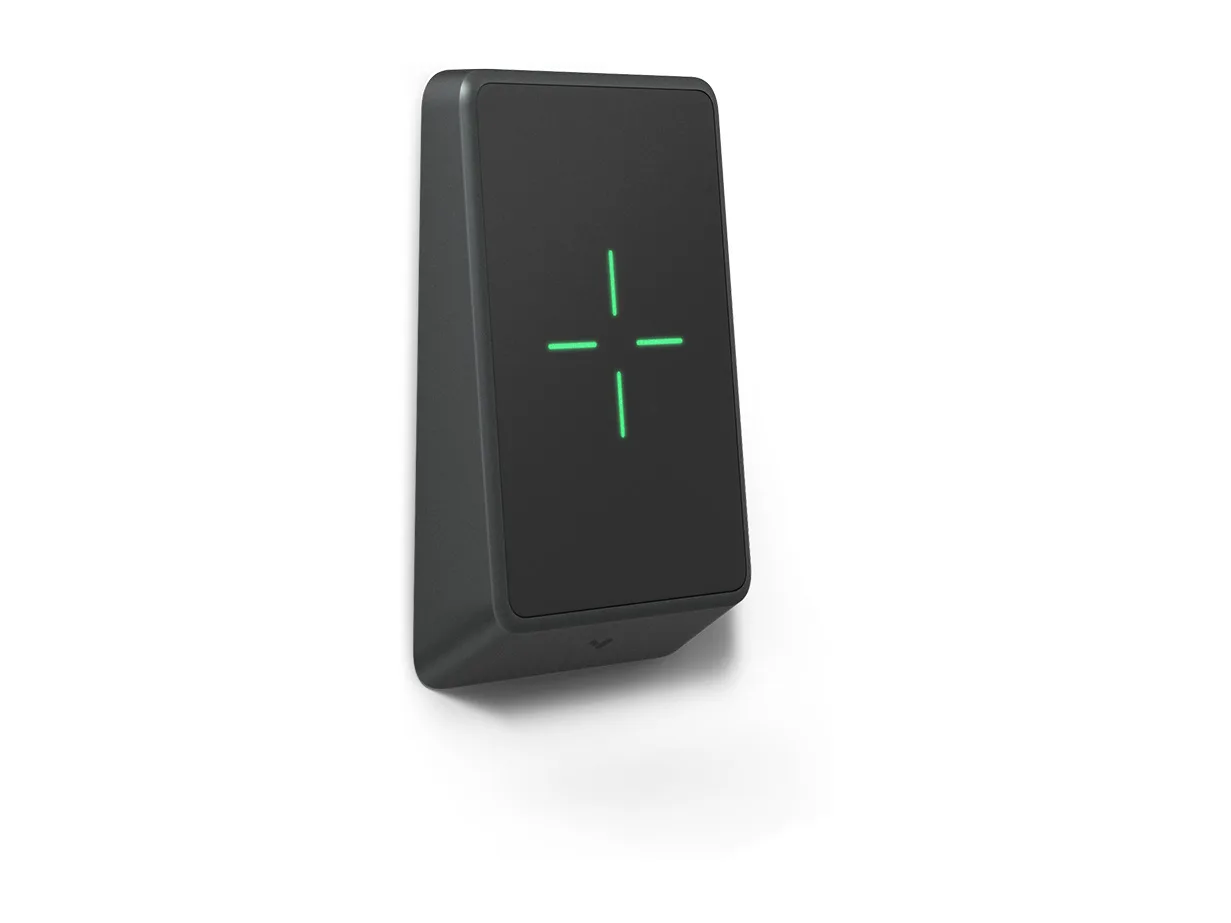
- On the two current readers, green or red for a moment is a scan result, steady green or red is an unlock hold or lock hold on the door, and pulsing green or red is Emergency Release or Emergency lockdown.
- On the older AD33 and AD32, a cascading status light means the reader is powered on but cannot connect to its access control unit.
- An AD31 with no light is not getting power from the access controller, and one that stays solid white when a badge is presented may be seeing an incompatible badge.
- Verkada readers do not support HID iClass, Indala or Kantech XSF cards. Those cards need a third-party reader that advertises the compatibility.
- A third-party Wiegand reader on a Verkada controller follows its own manufacturer's lighting specifications.
Which Verkada reader do I have?
The table tells Verkada's readers apart by what is on the face and gives each one's sales status. For causes that apply to any brand of reader, see the general guide to a key fob that is not working.
A reader made by another company can also be wired to a Verkada controller using the Wiegand protocol, a common reader-to-controller wiring format. Verkada says those readers follow their manufacturers' lighting specifications.
For the installer: every Verkada Wiegand connection includes a Reject (RLED) and a Grant (GLED) for accessory lights and devices, most often used to trigger a Wiegand reader's red or green LED. For a reader that is red by default, the RLED can be connected to a different light color, or the default color changed by following the device manufacturer's directions.
| Reader | What is on the face | What Verkada says about availability |
|---|---|---|
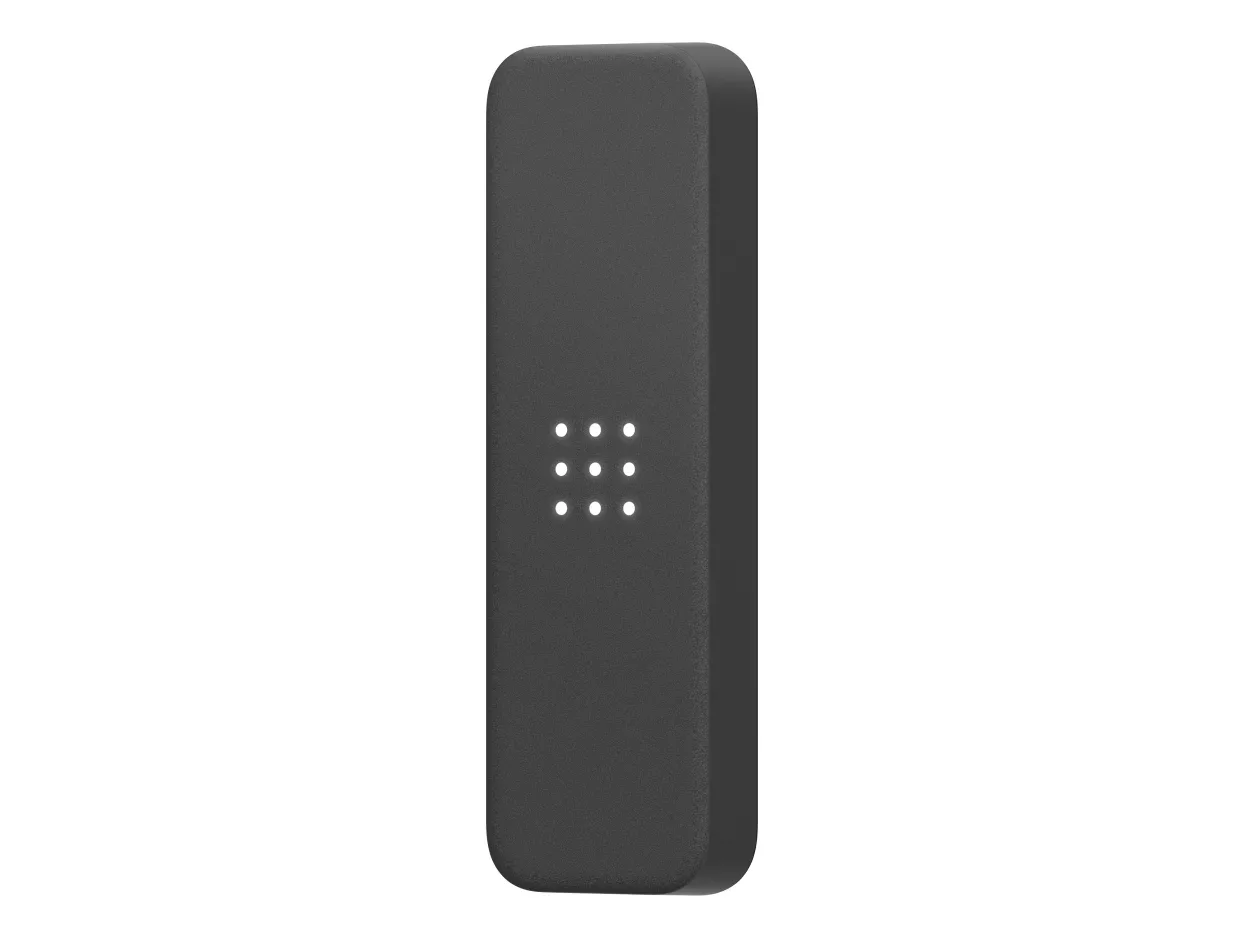
| AD34 (model AD34-HW) | White LEDs that form a matrix, plus color LEDs. | Named with the AD64 as the replacement for the AD33. |
| AD64 Door Reader with Keypad (model AD64-HW) | A keypad with lit numbers, plus a feedback LED. | Named with the AD34 as the replacement for the AD33. |
| AD33 | A status LED, a feedback LED on the top of the unit, and 9 indicator LED lights. | No longer sold for net new installations as of August 1, 2025. End-of-Support date August 1, 2035. |
| AD32 | A status LED and a feedback LED. | No longer sold for net new installations as of May 5, 2023. End-of-Support date May 5, 2033. |
| AD31 | 8 indicator LEDs that illuminate white during initial power on. | Final orders had to be received by April 30, 2022. End-of-Support date April 30, 2032. |
Source Verkada's Card Reader LED Behavior help page, the install guides for the AD34, AD64, AD33 and AD32, the AD33 datasheet, the AD31 quick start guide, and Verkada's end-of-sale announcements for the AD33, AD32 and AD31.
What the lights mean on the AD34 and AD64
The two current readers share most of their light states. The keypad reader adds keypad states for PIN entry.
ACU means access control unit, the Verkada controller the reader is wired to. On the keypad reader, the # key submits a PIN and the ✱ key resets the input. If the keypad is left mid-input, it flashes and beeps twice when it resets.
| Light | AD34 | AD64 |
|---|---|---|
| Cycling (AD34 white LEDs) or cascading (AD64 keypad LEDs) | Booting up. | Booting up. |
| Static (AD34 white LEDs, AD64 keypad LEDs) | Powered and connected to the ACU. | Powered and connected to the ACU. |
| Keypad LEDs flash 2x | Not listed | PIN reset from inactivity or correction. |
| Keypad LEDs pulsing | Not listed | For instances of Two Factor and Quorum: the reader is ready to scan the second credential (badge or PIN input). |
| Green, temporarily | Successfully processed a user scan and granted access. | Successfully processed a user scan and granted access. |
| Red, temporarily | Successfully processed a user scan and denied access. | Successfully processed a user scan and denied access. |
| Green, static | Unlock hold placed on door. | Unlock hold placed on door. |
| Red, static | Lock hold placed on door. | Lock hold placed on door. |
| Green, pulsing | Emergency Release. | Emergency Release, with keypad LEDs dimly lit. |
| Red, pulsing | Emergency lockdown. | Emergency lockdown, with keypad LEDs dimly lit. |
Source The LED Behaviors pages in Verkada's AD34 and AD64 install guides.
What the lights mean on the AD33 and AD32
These two older readers label a status light for power and connection and a feedback light for the result of a scan. Both install guides give the same four states.
The AD33 requires a Verkada access control unit (ACU) or a Verkada TD52 video intercom. Its install guide names three controllers: the AC41, AC42 and AC62.
The AD33 datasheet adds a lockdown state: red status and pulsing feedback LEDs display when a lockdown scenario or event has been triggered in Verkada Command, the software where doors and users are managed, and the door cannot be unlocked.
The same datasheet says the feedback LED displays white, green or red, and the 9 indicator LED lights display green or red in response to successful and unsuccessful badge events and/or lock states.
| Light | Meaning |
|---|---|
| Static status LED | Powered on and connected to the ACU. |
| Cascading status LED | Powered on but cannot connect to the ACU. |
| Green feedback LED | Has successfully processed a user scan and granted access. |
| Red feedback LED | Has successfully processed a user scan and denied access. |
Source The LED Behavior sections of Verkada's AD33 and AD32 install guides, and the AD33 datasheet.
What the lights mean on the AD31
Verkada's help page says the AD31 is being phased out in favor of the AD32, and gives these LED states for readers still in use.
For a red light, the AD31 quick start guide's advice is: "Re-scan or investigate bad scan."
| Light | Meaning | What Verkada says to do |
|---|---|---|
| No LED | Not receiving power from the access controller's + and – terminals. | Ensure that the access controller is powered on and that the reader is properly wired. |
| Flashing white | Connected to the access controller, but the door has not yet been configured in Verkada Command. | Configure the door in Command. |
| Spinning white | Updating, restarting, or cannot connect to the access controller. | Try directly connecting the reader to the access controller. If the issue persists, try moving the reader to another door cassette. |
| Solid white | Active and ready for secure badge entrance. | If it remains in this state even when a badge is presented, the badge may be incompatible. |
| Green | Successfully processed a user scan, and access is granted. | Not listed |
| Red | Identified a negative read, and access is denied. | Ensure the credential has been added to an access user's profile and that an access level grants the user permission to unlock the door. |
| Solid red | The door has been told to emergency lock as part of a scenario. | Not listed |
Source Verkada's Card Reader LED Behavior help page and the AD31 quick start guide.
A white light that does not change when a badge is presented
On the AD31, a reader that remains solid white even when a badge is presented may be seeing an incompatible badge. A card in a supported card format gets feedback from the reader showing that the badge was scanned.
Verkada readers do not support HID iClass cards, Indala cards, or Kantech XSF cards. For those cards, a third-party reader that advertises this compatibility must be used.
For a 4-byte MIFARE Classic card, the AD33 reads the Card Serial Number (CSN) while a Wiegand reader reads the card number. After a switch from Wiegand readers to the AD33, the cards need to be re-scanned.
If an organization uses a card format that is not listed, Verkada says to contact its Verkada Account Executive.
Source Verkada's Card Reader LED Behavior and Access Controller Hardware Checks help pages, its Supported Card Formats help page, and its supported card formats datasheet.
A red light after a scan, or a red light that stays on
On every Verkada reader in the tables above, red right after a scan means the reader processed the scan and denied access.
Schedules are part of an access level: they determine when users can access a door, and exceptions take precedence over the schedule. Exceptions are typically used for holidays or special events where access must be modified temporarily.
A card or fob can also be switched off for lack of use. Credential Auto-Deactivate, when enabled, deactivates credentials that have not been used for a set period of 7 to 365 days, and it only works for physical credentials like cards and fobs.
The access user's profile shows the status of each keycard and when it was last used. A Deactivated Credential Used alert covers an attempt to use a deactivated credential at a door.
A red light that stays on means something else. On the current readers, static red is a lock hold and pulsing red is Emergency lockdown; on the AD31, solid red means the door has been told to emergency lock as part of a scenario.
Emergency scenarios are pre-configured emergency responses that admins can activate from Verkada Command, the Verkada Pass App, or a physical input. Each scenario defines which doors lock, which doors unlock, and who is notified. If one active scenario tells a door to lock and another tells the same door to unlock, the door will lock.
Source Verkada's Card Reader LED Behavior page, the AD34 and AD64 install guides, and its help pages on access level schedules and exceptions, Credential Auto-Deactivate and Emergency Scenarios.
No light, or a white light that keeps moving
The tables above give each model's moving-light states, and the AD31 table gives its no-light state. On the AD34, cycling LEDs also show the reader is receiving power, and it is connected to the access controller when the static matrix is visible. The AD64 is connected to the ACU when all numbers are illuminated and static.
Verkada's Access Controller Hardware Checks need a multimeter and 2 short wires and say to always unplug the access controller before changing wiring or swapping cassettes (the removable wiring blocks readers connect to).
For a reader that does not power up or give feedback on a scan, the check is DC voltage across the + and – of the cassette reader bank, which should measure around 12V; if it is not near 12V, contact Verkada Support. If nothing is read and the controller has a working reader, the next check is to move the working reader, cassette and all, to that port and scan a card.
Command also reports the wiring between a Verkada reader and its controller as a Reader Connectivity Status with 4 states. Disconnected means there is no valid connection between the reader and the access controller. A Connected status with an integrity score under 0.90 can mean missed card scans, improper card reads and readers that cannot update their firmware; Verkada says a user who sees failed card scans should contact their installer to improve the wiring integrity.
Verkada recommends twisted pair, shielded cable for readers, with the maximum lengths in the table, and says not to install a reader on a metallic door.
| Wire gauge | Maximum length |
|---|---|
| 22 AWG | 250 ft |
| 20 AWG | 300 ft |
| 18 AWG | 500 ft |
Source The AD34 and AD64 install guides, Verkada's Card Reader LED Behavior page, and its Access Controller Hardware Checks and Reader Connectivity Status help pages.
What Verkada says happens during an internet outage
If the access controller loses internet connectivity, it runs the last known configuration it received from the cloud. That configuration persists even if the controller loses power and is rebooted.
In Verkada's example, an existing employee's badge works during an outage and a new hire's badge issued during the outage does not, until the connection is restored and the controllers pull the new configuration from the cloud.
Events are stored locally until the internet is restored. The controller has enough internal storage for outages of 3 to 12 months, depending on the number of events recorded.
The AC41 controller has its own status light, and its blue states are in the table.
| AC41 status LED | What Verkada says |
|---|---|
| Solid blue | The state the Access Controller Hardware Checks page assumes. |
| Blinking blue | The hardware checks page says to check the network settings. |
| Flashing blue | Managing doors but cannot reach the server. |
Source Verkada's Offline Operation help page, its AC41 Status LED page, and its Access Controller Hardware Checks page.
Service for Verkada readers in the Bay Area
Elwin Security installs, repairs and supports Verkada access control, including card reader and key fob access control, for commercial and multifamily properties in the San Francisco Bay Area. Calls are answered 8:00 AM-8:00 PM daily at (408) 539-0535.
Questions about Verkada reader lights
Verkada reader light questions
What does a white light mean on a Verkada door reader?
On an AD34, cycling white LEDs mean booting up and static white LEDs mean powered and connected to the ACU. On an AD31, solid white means the reader is active and ready for secure badge entrance.
What does a pulsing red light mean on a Verkada reader?
On the AD34 and AD64, pulsing red is Emergency lockdown. On the AD33, red status and pulsing feedback LEDs display when a lockdown scenario or event has been triggered in Verkada Command and the door cannot be unlocked.
Why is a Verkada reader showing steady green?
On the AD34 and AD64, static green means an unlock hold is placed on the door. Pulsing green on those two readers means Emergency Release.
Is there a Verkada reader manual that lists the lights?
Yes. The install guides for the four newer readers each have an LED Behavior or LED Behaviors section, and Verkada's Card Reader LED Behavior help page also covers the AD31.
Sources and further reading
These sources back up the general guidance. Your building and the people who approve the work decide the details for your doors.
- Verkada: Card Reader LED Behavior
- Verkada: AD34 Door Reader Install Guide, V1.2 (20240924)
- Verkada: AD64 Door Reader with Keypad Install Guide, V1.0 (20240924)
- Verkada: AD33 Door Reader Install Guide, V1.3 (20240723)
- Verkada: AD32 Door Reader Install Guide, V1.1 (20220321)
- Verkada: AD33 card reader datasheet (0124)
- Verkada: AD31 Reader quick start guide
- Verkada: End-of-sale announcement for AD33
- Verkada: End-of-sale announcement for AD32
- Verkada: End-of-sale announcement for AD31
- Verkada: Access Controller Hardware Checks
- Verkada: Reader Connectivity Status
- Verkada: Supported Card Formats
- Verkada: Supported card formats datasheet (0126)
- Verkada: Credential Auto-Deactivate
- Verkada: Access Level Schedules and Exceptions
- Verkada: Emergency Scenarios
- Verkada: Offline Operation
- Verkada: AC41 Status LED