
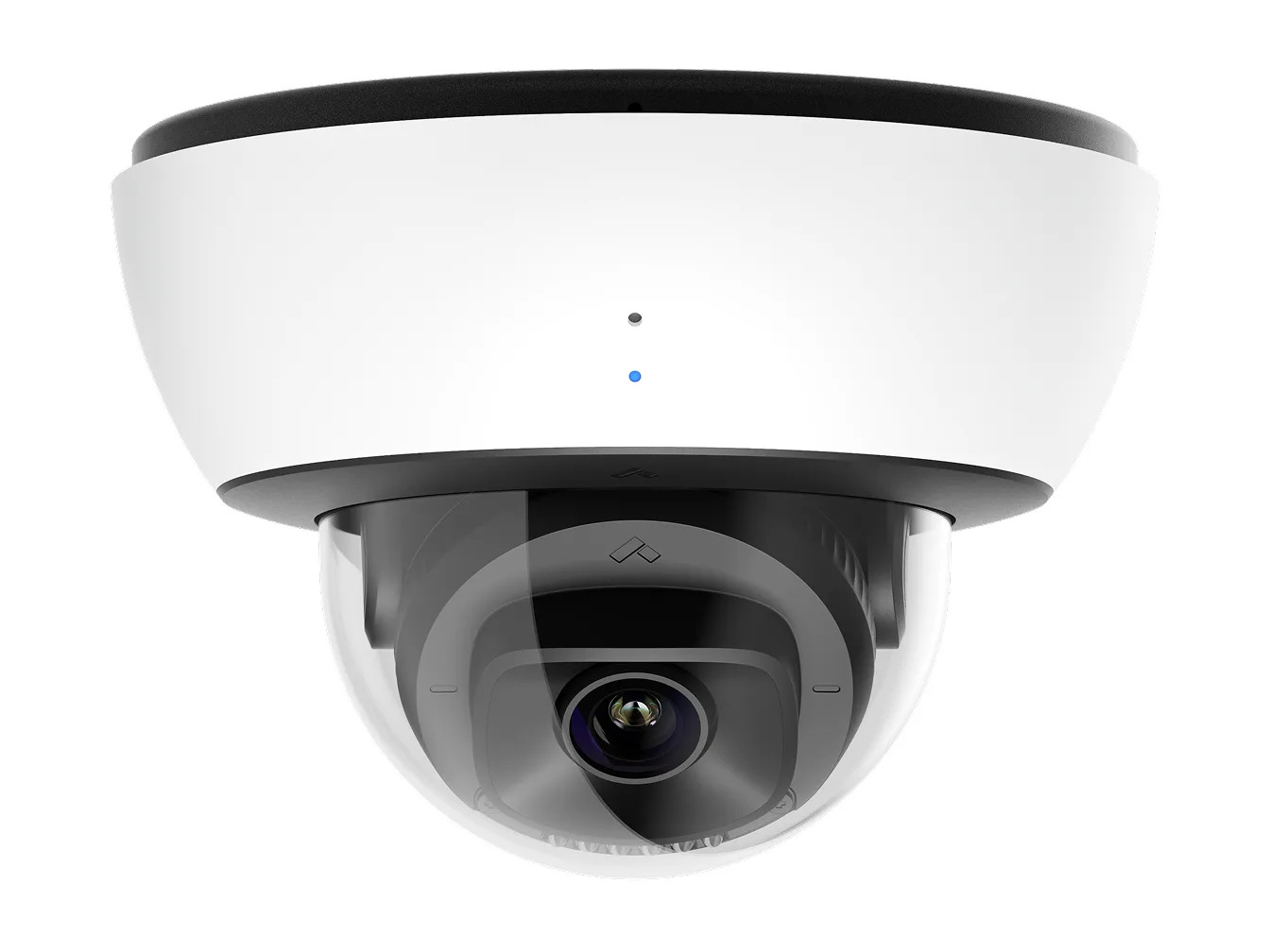
Key takeaways
- On the two domes, the mini dome and the bullet, the data sheets pair 256GB with up to 30 days of standard quality video and 2TB with up to 365 days.
- Cloud backup, enabled per camera, keeps video for 30 days, or longer with an extended cloud backup license.
- A solid blue status light means the camera is running, connected and recording.
- All six install guides give a mounting height of 8 to 10 feet; five say "try to keep" it.
The Verkada cameras these facts apply to
This page covers six cameras; Verkada lists more.
For placement principles that apply to any maker's cameras, see the general guide to apartment camera placement.
| Model | Verkada's name | Onboard storage | Infrared (IR) range | Ratings on the data sheet | Install guide also covers |
|---|---|---|---|---|---|
| CD53 | Indoor Dome Camera | 256GB to 2TB | 98ft / 30m | IK08 impact rating | CD43 |
| CD53-E | Outdoor Dome Camera | 256GB to 2TB | 98ft / 30m | IP66/67 weather rating, IK10 impact rating | CD43-E |
| CM42 | Indoor Mini Dome Camera | 256GB to 2TB | 66ft / 20m | IK08 impact rating | CM22 |
| CB53-E | Bullet Camera | 256GB to 2TB | 164ft / 50m | IP66/67 weather rating, IK10 impact rating | CB53-TE, CB63-E and CB63-TE |
| CF83-E | Fisheye Camera | 512GB to 3TB | 20m / 66ft | IP66/67 weather rating, IK10 impact rating | No other model |
| CY53-E | Two-Camera Multisensor | 512GB to 4TB in the key features and ordering table; 512GB to 2TB in the tech specs | 98ft / 30m | IP66/67 weather rating, IK10 impact rating | CY63-E |
Source The data sheets and install guides for the six cameras.
How long a Verkada camera keeps video
Each of the six cameras stores video on a microSD card, and its data sheet's ordering table ties a storage size to a maximum number of days of standard quality (SQ) video, shown below. Video is captured at 24 frames per second, except on the CM61, which records at 20.
Standard quality video is recorded continuously up to the designated retention, and when motion is detected, the camera also saves high quality footage; Verkada calls this adaptive quality. In a scene with excessive motion, such as a busy intersection or entrance, the space for high quality footage may fill up. The earliest high quality video is then cycled out, and older footage is stored only in standard quality.
Retention is also a setting, from zero days, which Verkada calls live-only mode, up to the camera's maximum; fewer days of standard quality video leaves more space for high quality video. The whitepaper warns that decreasing the setting deletes historical video, thumbnails and other captured artifacts from the camera and the cloud, and calls this an irreversible action. When storage is full, the camera progressively deletes the oldest footage to make room for new footage.
| Model | 30 days | 60 days | 90 days | 120 days | 365 days |
|---|---|---|---|---|---|
| CD53 | 256GB | 512GB | 768GB | 1TB | 2TB |
| CD53-E | 256GB | 512GB | 768GB | 1TB | 2TB |
| CM42 | 256GB | 512GB | 768GB | 1TB | 2TB |
| CB53-E | 256GB | 512GB | 768GB | 1TB | 2TB |
| CF83-E | 512GB | 1TB | 2TB | 3TB | Not listed |
| CY53-E | 512GB | 1TB | 1.5TB | 2TB | 4TB (ordering table; the tech specs give capacity up to 2TB) |
Source The ordering tables in the six data sheets, Verkada's adaptive quality recording whitepaper and its Common Storage Questions page.
What reaches the cloud, and the bandwidth Verkada lists
By default, recorded video footage is not stored in the cloud. Archived video clips are stored in the cloud for the lifetime of the Verkada account. Cameras that are not being viewed send only metadata and thumbnails to the cloud.
Cloud backup is enabled per camera. It uploads footage from the moment it is enabled, not earlier footage, and keeps video for 30 days, or longer with an extended cloud backup license. The CD31 and CD31-E are the exception: they have 15 days of onboard storage and come with 15 days of cloud backup.
Low Bandwidth Mode reduces resting bandwidth by up to 75% and streaming bandwidth by up to 33%, with a slight trade-off in video quality and scrubbing performance.
For the two domes, the mini dome and the bullet, the Bandwidth page's tables list 300 Kbps for a standard quality stream, while their data sheets list "Standard quality (SQ): up to 600 kbps" under live streaming settings.
| Model | Not being viewed | SQ stream, local or cloud | HQ stream, local or cloud |
|---|---|---|---|
| CD53 and CD53-E | 20–50 Kbps (the row is labeled No view - Low Bandwidth Mode) | 300 Kbps on the Bandwidth page; up to 600 kbps on the data sheets | 3 Mbps |
| CM42 | 20–50 Kbps | 300 Kbps on the Bandwidth page; up to 600 kbps on the data sheet | 3 Mbps |
| CB53-E | 20–50 Kbps | 300 Kbps on the Bandwidth page; up to 600 kbps on the data sheet | 3 Mbps |
| CF83-E | 20–50 Kbps | 600 Kbps | 4.5 Mbps |
| CY53-E | 20–50 Kbps (the row is labeled No view - Low Bandwidth Mode) | 600 Kbps | 3 Mbps |
Source Verkada's Common Storage Questions, Cloud Backup, Bandwidth Consumption & Uplink Requirements and Low Bandwidth Mode help pages, and the data sheets for the six cameras.
Does a Verkada camera record when the network is down?
Verkada says its cameras continue to record and save video without a network connection as long as there is a power source. To record footage, a camera must have been added to a Command organization and have connected to Command at least once via the internet.
While the camera is offline, embedded links and live-viewing links are not accessible, and thumbnails are not stored locally or indexed after it reconnects. Once reconnected, cameras try to upload the oldest footage first, and the video may take some time to become accessible; index times depend on network bandwidth and reliability. If cloud backup has an upload schedule, footage will not upload outside it. For a camera with cloud backup, footage uploaded before the outage can still be viewed, and backup resumes once the connection to the cloud is re-established.
Source Verkada's Loss of Network Connection, Common Storage Questions and Cloud Backup help pages, and its hybrid cloud architecture data sheet.
What the status light means
Most Verkada cameras have a white ring-shaped status light. Solid orange means the camera is on and booting up, flashing orange means it is updating firmware, and solid blue means it is running, connected and recording data. Plain flashing blue, meaning the camera is unable to connect to Verkada Command, only appears on cameras running factory firmware.
Verkada says the camera is recording as long as the light is blinking blue, whether exclusively blue or with 1 to 8 orange blinks in between. Only orange blinks and no blue means it is likely not recording, on the assumption that it is upgrading and rebooting.
Red appears only on the CF83, CP63, CBx3, CDx3, CHx3 and CYx3 models: solid red means contact Verkada Support, and flashing red on the outer light counts out the error while the top cover is on. With the top cover removed, the error shows on a LAN or WAN debug light while the device status light shows solid red.
The first solid orange boot sequence can take up to 20 minutes to show the correct status if the camera is unable to reach any endpoint. When a network switch's Power over Ethernet (PoE) budget is exceeded, the camera will not power on or will be stuck on a constant orange light.
| Error | CF83, CP63, CBx3, CDx3, CHx3 and CYx3 models, outer LED | Other camera models |
|---|---|---|
| Camera has not received an IP address | 1 red | 1 blue, 2 orange |
| Camera has detected duplicate IP addresses on the LAN | 2 red | 1 blue, 4 orange |
| Camera is not able to reach the configured gateway | 3 red | 1 blue, 3 orange |
| Connected with Power over Ethernet (PoE), but unable to connect to the switch | 4 red | 1 blue, 1 orange |
| Camera is unable to resolve Verkada hostnames | 5 red | 1 blue, 5 orange |
| No response from the Network Time Protocol (NTP) server | 6 red | 1 blue, 6 orange |
| Unable to certify the Secure Sockets Layer (SSL) connection | Not listed | 1 blue, 7 orange |
| Verkada endpoints are not reachable after booting up | 7 red | 1 blue, 8 orange |
Source Verkada's Camera LED Status Indicators, Loss of Network Connection and Camera Power Requirements help pages.
Mounting height, placement and tailgate detection
Five of the six install guides say to mount the camera on the wall or ceiling and try to keep it 8 to 10 feet above the ground. The bullet guide drops the hedge: keep the camera 8-10 feet above the ground.
All six guides say to avoid overhangs or obstructions, which may reflect the camera's infrared (IR) illumination, the light it uses in the dark, and reduce image clarity in night mode. Verkada's deployment checklist adds that IR emitters should not face a white or reflective surface or be obstructed by the camera housing.
The two domes list a horizontal field of view of 109° to 39°, or 91° to 36° after lens distortion correction. The mini dome, a fixed-lens camera, lists 95°, or 79° after correction, and the fisheye lists 180° horizontal and 180° vertical. The fisheye install guide also recommends an angle mount to optimize its field of view and prevent reflections.
Tailgate detection pairs a Verkada camera with an access-controlled door and raises an event if multiple people enter on one access grant. It requires no new hardware as long as a Verkada camera is paired with the door, but a door position indicator (DPI) must be installed on the door and enabled in the settings. It is not currently supported on the D80 camera model.
Verkada's requirements put the camera on the inside of the door, opposite the reader, so people walk towards it after badging in; higher than the top of the door frame, with a gap between the bottom of the frame and the edge of the field of view; and at an angle between 10° and 55° relative to the perpendicular axis, measured when looking directly at the door.
| Camera model | Max distance from door |
|---|---|
| CD42 and CD42-E | 42 ft (12.8m) |
| CD52 and CD52-E | 39 ft (11.8m) |
| CD62 and CD62-E | 50 ft (15.2m) |
| CB52-E | 43 ft (13.1m) |
| CB62-E | 62 ft (18.8m) |
| CB52-TE | 105 ft (32m) |
| CB62-TE | 140 ft (42.6m) |
| CM41 and CM41-E | 42 ft (12.8m) |
Source The install guides and data sheets for the six cameras, Verkada's Camera Deployment page, and its Tailgate Detection and Configure a Door in Command help pages.
Placement for license plate recognition on bullet cameras
Verkada's Bullet series cameras can perform license plate recognition (LPR).
On lighting, Verkada says: "If the area where license plates are captured is far away and not well-lit, we strongly recommend using an external infrared (IR) illuminator to improve the visibility of the license plates."
| Models | Lanes and speed | Distance | Height or angle |
|---|---|---|---|
| CB53-E/TE and CB63-E/TE | Up to 3 lanes of traffic for vehicles traveling 80 mph (128 kph) | Within 164 ft (50m) for CB53-E and CB63-E; within 328 ft (100m) for CB53-TE and CB63-TE, for optimal IR performance during long-distance nighttime viewing | Keep the camera 8-10 feet above the ground |
| CB52-E/TE and CB62-E/TE | Up to 3 lanes of traffic for vehicles traveling 80 mph (128 kph) | Within 46 ft (14m) for the CB52-E and CB62-E; within 115 ft (35m) for the CB52-TE and CB62-TE | Less than 30° vertically or horizontally from the location of the license plate |
| CB51-E/TE and CB61-E/TE | A single lane of traffic for vehicles traveling 20 mph (32 kph) or less, such as an entrance or drive-thru | Within 60 ft (18m) for the CB51-E and CB61-E | No more than 20° horizontally and/or 40° vertically from the location of the license plate |
Source Verkada's Configure License Plate Recognition help page.
PoE power and environmental ratings
Verkada's cameras use PoE for power and network connectivity, and power sources must conform to IEEE 802.3 standards; Verkada says devices will not negotiate properly on UPOE or other proprietary PoE methods. Most outdoor models require 802.3at PoE+ to support the built-in cold-weather heater at temperatures below 16 °F (-8.5 °C), and some models require an 802.3bt PoE++ power source for full functionality.
Verkada's power page says all indoor Verkada cameras use 802.3af PoE. The indoor dome's data sheet lists 802.3at PoE+ with IR, and the power page's own Dome series table puts both domes under an 802.3at PoE+ heading with IR.
For the bullet, the data sheet lists 802.3at PoE+ both with and without IR, while the power page's Bullet series table heads the without-IR column 802.3af PoE.
Verkada's ratings page says the indoor Camera Dome series is IK08-rated, and that the outdoor Camera Dome series, the CF83-E and CF81-E fisheye cameras and the Bullet cameras are IK10-rated and IP67-rated, which it defines as dust-tight and water-tight. The outdoor dome, bullet, fisheye and multisensor data sheets print the weather rating as IP66/67.
| Model | With IR | Without IR | Extended temperature range |
|---|---|---|---|
| CD53 | IEEE 802.3at Type 2 PoE+ | IEEE 802.3af Type 1 PoE | N/A |
| CD53-E | IEEE 802.3at Type 2 PoE+ | IEEE 802.3af Type 1 PoE | IEEE 802.3at Type 2 PoE+ |
| CM42 | IEEE 802.3af Type 1 PoE | IEEE 802.3af Type 1 PoE | N/A |
| CB53-E | IEEE 802.3at Type 2 PoE+ | IEEE 802.3at Type 2 PoE+ | IEEE 802.3at Type 2 PoE+ |
| CY53-E | IEEE 802.3at Type 2 PoE+, given as a single power input line | Not given separately | Not given separately |
Source Verkada's Camera Power Requirements and Camera Environmental Ratings help pages, and the data sheets for the six cameras.
Service for Verkada cameras in the Bay Area
Elwin Security installs, configures and supports Verkada cameras as part of security camera installation for commercial and multifamily properties in the San Francisco Bay Area. Calls are answered 8:00 AM-8:00 PM daily at (408) 539-0535.
Questions about Verkada cameras
Verkada camera questions
Does a Verkada camera record when the internet is down?
Yes, as long as it has power, Verkada says, once the camera has been added to a Command organization and has connected to Command at least once.
What does a flashing red light mean on a Verkada camera?
On the CF83, CP63, CBx3, CDx3, CHx3 and CYx3 models, the number of red flashes names a specific network error. Solid red means contact Verkada Support.
Is there a reset button on a Verkada camera?
Verkada's indoor dome install guide labels a QR code, a microphone switch that physically disconnects the microphone, status and debug lights, a level and the mount plate, and no reset button. For a camera that stays solid orange, Verkada's Troubleshoot Offline Camera page says this usually indicates it is not getting enough PoE power, and directs readers to Verkada Support if it continues.
Sources and further reading
These sources back up the general guidance. Your building and the people who approve the work decide the details for your doors.
- Verkada: Common Storage Questions
- Verkada: Adaptive quality recording whitepaper (0926)
- Verkada: Cloud Backup
- Verkada: Bandwidth Consumption & Uplink Requirements for Video
- Verkada: Optimize Low Bandwidth Mode
- Verkada: Loss of Network Connection for Cameras
- Verkada: Camera LED Status Indicators
- Verkada: Troubleshoot Offline Camera
- Verkada: Camera Power Requirements
- Verkada: Camera Environmental Ratings: IK and IP
- Verkada: Camera Deployment
- Verkada: Configure License Plate Recognition
- Verkada: Tailgate Detection
- Verkada: Configure a Door in Command
- Verkada: CD53 Indoor Dome Camera data sheet (0726)
- Verkada: CD53-E Outdoor Dome Camera data sheet (0726)
- Verkada: CM42 Indoor Mini Dome Camera data sheet (0726)
- Verkada: CB53-E Bullet Camera data sheet (0726)
- Verkada: CF83-E Fisheye Camera data sheet (0626)
- Verkada: CY53-E Two-Camera Multisensor data sheet (0726)
- Verkada: Hybrid cloud architecture data sheet
- Verkada: CD43 CD53 Indoor Dome Camera Install Guide, V1.1 (20250509)
- Verkada: CD43-E CD53-E Outdoor Dome Camera Install Guide, V1.2 (20251017)
- Verkada: CM22 CM42 Mini Dome Camera Install Guide, V1.5 (20251101)
- Verkada: CB53 and CB63 Bullet Camera Install Guide, V1.0 (20260507)
- Verkada: CF83-E Outdoor Fisheye Camera Install Guide, V1.4 (20251017)
- Verkada: CY53-E CY63-E Two-Camera Multisensor Install Guide, V1.4 (20260126)